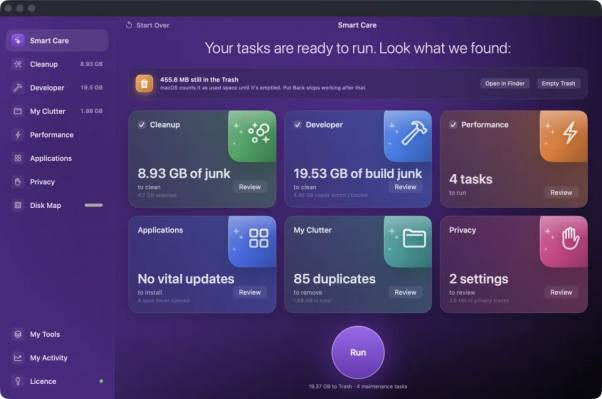
Slow Mac, full disk, spinning beachball. Those three get lumped together under one word, and that word sells a great deal of software every year. Anyone shopping for the best Mac optimization software hits the same wall right away: every product promises a faster machine, few explain which problem they actually solve. Naming the symptom first saves money.
Four Problems Hiding behind One Word
Sort the Symptom before the Purchase: Storage running out is not the same thing as an app freezing mid-save. Those need different fixes entirely. The best Mac optimization software for a full drive scans storage and shows what can go, while a machine struggling under load needs something watching what runs, not what sits. The label on the box rarely says which.
Cache Clearing Is Maintenance, Not Magic: Temporary files pile up because macOS writes them on purpose, over and over. Tools that clean temp files on Mac systems free real space, and the system rebuilds that cache the next time an app needs it. Expect room on the drive back. Do not expect a different computer. First launch afterward runs a touch slower, then settles.
Where Each Kind of Tool Earns Its Keep
Narrow Tools Do One Job Well: A single app uninstaller removes one program and its leftovers, nothing more than that. Disk visualizers draw a map and stop there, which is fine if a map is what you wanted. Maintenance utilities run scripts and restart background processes that macOS already handles on its own schedule. Each one has a place. None covers the whole storage picture.
Broad Scanners Cover More Ground: Scanning the full home folder, hidden directories included, pulls in app caches, old installers, duplicates and developer folders in a single pass. The best Mac optimization software for storage shows every path with the size beside it, then waits for your decision instead of removing anything by itself. Fixed folder lists miss most of the rest.
Match the Fix to What Went Wrong
When Free Space Really Does Affect Speed: A drive sitting at ninety-nine percent full causes genuine trouble. macOS needs headroom to write, swap and handle virtual memory, and things drag badly when none of that headroom is left. Clearing twenty gigabytes fixes that particular problem. It will not fix an aging processor or a browser holding sixty tabs open. Honest tools say so.
Checks Worth Running before Paying: Free versions differ wildly in what they let you do. Some scan happily and then lock removal behind a payment screen, which is a fair trade as long as nobody hides it. Anything offering to clean temp files on Mac drives should show the folder each file came from first. A list without paths asks for blind trust.
- Where removed files land. Trash first beats permanent deletion every time
- Whether anything the tool only guessed at arrives already ticked for you
- Does it want an admin password, and what exactly does it install once it has one
- Scan coverage, meaning a fixed folder list or the whole home folder
- Removal should be simple. Dragging the app out is enough
Trade Guesswork for a List You Can Check
Generic speed claims sell well and explain almost nothing about your particular machine. Running a scan on your own drive gives you a real figure with real paths attached, which beats a marketing promise on any day of the week. Try a free scan, look at what comes back, then decide whether removing any of it solves the problem you actually have.